


Version 2.0 — 2026-11-06 · replaces version 1.0 (2026-01-01)
The short version
Starting January 12, 2027, two-factor authentication will be required on all AdocSys client accounts. You set it up once, at your first login on or after that date. It takes about five minutes, and your phone.
Nothing changes before January 12. You can turn it on today if you want.
What it is
A code, on top of your password. The code comes from one of two places:
- an authenticator app (time-based tokens), on your phone or your computer — the recommended method
- a text message (SMS), on your mobile phone
Even if someone gets your password, they can't get in without that second factor.
Email is not offered as a second factor, and that's on purpose. Most of the time, the mailbox and the account fall together: a code sent to an address that is already compromised protects nothing.
Before you start
- Your phone, with an authenticator app, or a mobile number that can receive texts
- Five minutes
- Your password
Apps that work: 1Password (the one we offer and support), KeePassXC (free), or any other app of the same kind. If you already use 1Password, use 1Password — it's already there.
Note: a landline, or a VoIP number, doesn't always receive texts. If that's your case, use the app.
How to turn it on
- Go to adocsys.com and click Login, at the top right.

- Enter your email and password.

- Click your name, at the top right, then Security Settings.

- The section shows that two-factor authentication is disabled. Click the button to enable it.

- Choose your method: Time-Based Tokens (app) or SMS.
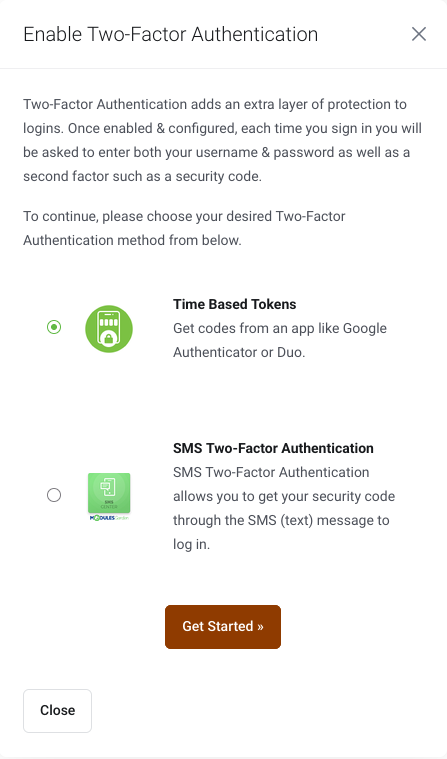
If you choose the app: open it, scan the QR code shown, then enter the code it generates. Click Finish.

- The system then shows a backup code. This matters: write it down somewhere you won't lose access to at the same time as your phone — a password manager, or a sheet of paper in a drawer. It works once.

If you choose SMS: enter your mobile number, with the area code, as in the example. You'll receive a text with a code. Enter it.


- Done. The section now shows that two-factor authentication is enabled.

Logging in with 2FA
You enter your email and your password as usual, then the code from your app or from the text.
The code changes on its own, at a regular interval. If it's rejected, wait for the next one and try again: it's almost always a code that just expired.

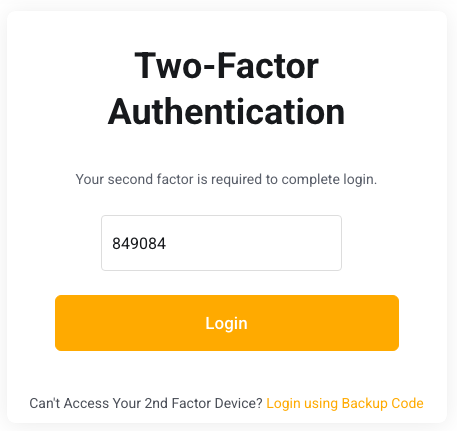
There is no "remember this device" option. The code is asked for at every login.
Starting January 12, 2027
If 2FA isn't set up on your account, the setup screen will appear at your next login, before you can get into your account. Plan for your phone and five minutes.
If you log in that day just to pay an invoice, you'll have to set up 2FA first. You can also pay directly from the link in the invoice email, without logging in — that link works as it did before.
You can set up 2FA before January 12. It's actually a good idea: it goes better on a quiet Tuesday than on a renewal day.
If you lose your phone, or the code won't work
- Use your backup code. It replaces the code once. Then go to your security settings to set up a new method.
- If you no longer have the backup code, email us at support@adocsys.net or call 1 877 749-9579.
We will verify your identity before disabling anything: a call to the number we already have on file, the number and the amount of one of your invoices, and confirmation through another channel. That can add a few minutes to the conversation. That's on purpose: the person calling might be someone else.
After it's disabled, you'll have to set up a new method at your next login.
Frequently asked questions
Do I need to do anything right now?
No. Nothing changes before January 12, 2027. If you want to turn it on before then, all the better.
Why not a code by email?
Because the mailbox is often compromised at the same time as the account, especially when it's hosted in the same place. A second factor that travels in the same inbox as the reset link isn't a second factor.
I don't have a smartphone.
Install the app on your computer: 1Password and KeePassXC install there too. Or use SMS, if your mobile phone receives texts.
Does it cost anything?
No. There is no charge on our side. Your carrier's text-message fees, if any, remain yours.
Is it required for sub-accounts?
Each user has their own 2FA. If you've invited contacts into your account, each one sets theirs up at their next login.
Does it replace my password?
No. Keep it strong, and unique. 2FA is a second lock, not a replacement for the first one.
Does it stop everything?
No. It stops a stolen or reused password. It doesn't stop a scam where someone talks you into giving them the code yourself. If someone asks you for your code over the phone, that's a scam: we will never ask you for it.
